
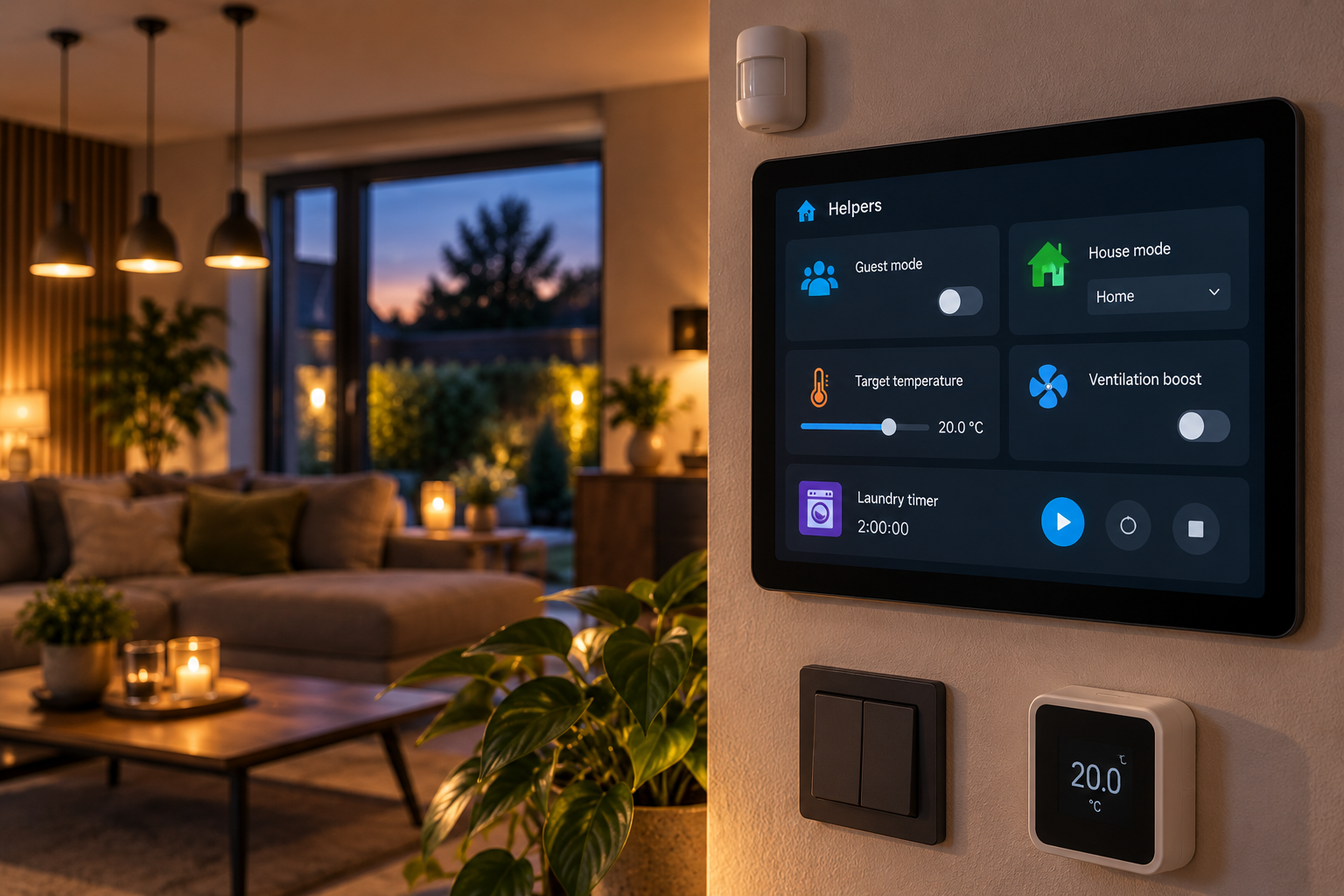
An extensive practical guide to the virtual entities that give your smart home memory, settings, timers, choices and calculations. With examples for automations, dashboards, climate control, ventilation, washing machines and energy.
Why Helpers matter so much. An automation responds to what is happening now. A Helper can remember what you want: guest mode on, a target temperature of 20.5 °C, Night house mode, a 20-minute timer, or a calculated sensor such as net power.
The examples retain the original entity IDs, YAML and Jinja expressions, including Dutch example aliases and IDs, so that the technical examples remain the same as in the source. The illustrations in this English article use the original English-labelled PDF images.
Basics and stored values
1. What is a Helper?
A Helper is an entity you create in Home Assistant without necessarily having a physical device behind it. Home Assistant then treats it almost like any other entity: you can put it on a dashboard, use it as a trigger or condition, read it in a template, and change it from an automation or script.
Helpers mainly solve three kinds of problems:
- Home Assistant needs to remember something that does not come from a device, such as Guest mode or Manual override.
- You want to change a setting yourself, such as temperature, threshold, time or operating mode.
- You want to derive a new value from existing entities, such as average temperature, energy per day or net grid power.
Not every automation needs a Helper. Do not automatically create a Helper for every small automation. Use one when state, a user setting, time, counting or a calculation really needs to exist outside the automation itself.
2. The three groups of Helpers
Current Home Assistant documentation broadly divides Helpers into stored values, calculated values, and helpers that combine or control entities.
| Group | Examples | What are they for? |
|---|---|---|
| Store a value | Toggle, Number, Dropdown, Text, Date/time, Button, Counter, Timer, Schedule | Memory, settings, choice, time, counting and manual control |
| Calculate a value | Combine state, Derivative, Integral, Utility Meter, History Stats, Threshold, Template | Creating new sensors or derived information |
| Combine / control | Group, Generic thermostat, Change device type | Bundling several entities or building a simple controller |
In the interface, you create most Helpers through Settings > Devices & services > Helpers > Create helper. You can edit UI Helpers again later. Helpers that you define manually in YAML are managed in YAML.
3. What happens after a Home Assistant restart?
Helpers often act as memory for your automations, so restart behaviour matters. Most Helpers retain their last value. There are exceptions and configurable options, however.
| Helper | Default after restart | Important detail |
|---|---|---|
| Toggle | Usually retains its last value | You can set a fixed startup value |
| Number / Dropdown | Last valid value | YAML initial forces a startup value |
| Counter | Last value | restore can be disabled |
| Timer | idle by default after restart |
Enable Restore state and time if the countdown must continue |
| Schedule | Recalculated | State follows the configured time blocks |
| Calculated helper | Recalculated | Depends on source entities |
Timer limitation. If a timer expires while Home Assistant is not running, the past timer.finished event is not automatically fired after startup. Do not design critical logic as though this were guaranteed.
4. Toggle / input_boolean – the digital memory bit
Toggle is probably the most commonly used Helper. Technically it becomes an input_boolean. It has only two states: on and off. That makes it ideal for modes and manual overrides.
Good uses include:
- Guest mode, vacation mode or cleaning mode.
- Temporarily allowing or blocking an automation.
- A manual ventilation boost.
- A “PV may switch off” control.
- Remembering a state that no single physical device provides.
Example – input_boolean as a condition:
alias: Buitenverlichting alleen automatisch als automation is toegestaan
triggers:
  - trigger: sun
    event: sunset
conditions:
  - condition: state
    entity_id: input_boolean.buitenverlichting_auto
    state: "on"
actions:
  - action: light.turn_on
    target:
      entity_id: light.buiten
A strong pattern. Use an input_boolean for a clear human choice: “may this happen automatically?” That is often better than a complicated hidden exception in your YAML.
5. Number / input_number – adjustable values
A Number Helper stores a number. You set a minimum, maximum, step size and, if needed, a unit. On a dashboard it can appear as a slider or input field. Typical examples are target temperature, minimum ventilation level, price threshold, duration or maximum power.
Example – using a dashboard value directly in an automation:
alias: Verwarming volgt instelbare doeltemperatuur
triggers:
  - trigger: state
    entity_id: input_number.woonkamer_doeltemperatuur
actions:
  - action: climate.set_temperature
    target:
      entity_id: climate.woonkamer
    data:
      temperature: >
        {{ states('input_number.woonkamer_doeltemperatuur') | float(20) }}
Do not use unnecessary decimal places. A thermostat target with 0.5 °C steps is often more pleasant than a slider with a hundred possible values.
6. Dropdown / input_select – a state with fixed choices
A Dropdown Helper stores exactly one value from a list you define. It is ideal for house state or operating mode. Example options: Home, Away, Night, Vacation, Guest.
Example – input_select as a central house state:
alias: Huisstatus vertaalt naar scenes
triggers:
  - trigger: state
    entity_id: input_select.house_mode
actions:
  - choose:
      - conditions: "{{ trigger.to_state.state == 'Night' }}"
        sequence:
          - action: scene.turn_on
            target:
              entity_id: scene.nacht
      - conditions: "{{ trigger.to_state.state == 'Away' }}"
        sequence:
          - action: light.turn_off
            target:
              entity_id: light.alle_lampen
Why this is better than five booleans. One dropdown can have only one active mode at a time. That prevents illogical combinations such as Night = on, Vacation = on and Guest = on simultaneously.
7. Text and Button – small Helpers with distinct roles
Text / input_text stores a short string. Think of a dashboard message, the last selected profile, a guest’s name, debug text, or a dynamic explanation filled in by an automation.
Button / input_button is a momentary action. You press it and Home Assistant remembers when it was last pressed. Use it for actions such as “Heat boiler now”, “Reset energy logic” or “Start cleaning routine”.
Example – input_button as an explicit user action:
alias: Handmatige boilerboost
triggers:
  - trigger: state
    entity_id: input_button.boiler_boost
actions:
  - action: script.boiler_boost_60_minuten
Use a Button when the user wants to start something. Use a Toggle when the choice must remain active afterwards.
8. Date and/or time / input_datetime
A Date/time Helper stores a date, a time, or both. You can use it directly as a time trigger. That is much more convenient than a hard-coded time when users should be able to change it themselves on a dashboard.
Example – input_datetime directly as a time trigger:
alias: Weklicht op instelbare tijd
triggers:
  - trigger: time
    at: input_datetime.weklicht_tijd
actions:
  - action: light.turn_on
    target:
      entity_id: light.slaapkamer
    data:
      brightness_pct: 20
Other uses include a vacation end date, the next boiler boost, the start of quiet mode, or an adjustable deadline.
9. Counter – counting events
A Counter Helper stores an integer that you can increment, decrement, reset or set to a value. It is ideal for counts rather than durations. Examples: wash cycles, doorbell events, filter changes, faults, charging cycles or the number of times an automation intervened.
Example – incrementing a counter:
alias: Tel deurbelmomenten
triggers:
  - trigger: state
    entity_id: binary_sensor.deurbel
    to: "on"
actions:
  - action: counter.increment
    target:
      entity_id: counter.deurbel_vandaag
You can also reset counters periodically, for example every night at 00:00.
10. Timer – a real countdown other automations can use
A Timer Helper is more useful than a simple delay when several automations need to know how much time remains, when you want to be able to pause or cancel it, or when it should be visible on a dashboard.
Automation 1 – start the boost:
alias: Badkamer ventilatieboost starten
triggers:
  - trigger: state
    entity_id: binary_sensor.shower_active
    to: "on"
actions:
  - action: fan.turn_on
    target:
      entity_id: fan.badkamer
  - action: timer.start
    target:
      entity_id: timer.badkamer_boost
    data:
      duration: "00:20:00"
Automation 2 – respond when the timer finishes:
alias: Badkamer ventilatieboost stoppen
triggers:
  - trigger: event
    event_type: timer.finished
    event_data:
      entity_id: timer.badkamer_boost
actions:
  - action: fan.turn_off
    target:
      entity_id: fan.badkamer
11. Schedule – a weekly plan as an entity
A Schedule Helper lets you define time blocks per weekday. Within a block the schedule is on; outside it is off. That gives you a plan without dozens of time conditions.
Examples:
- Heating may use comfort mode on weekdays from 06:30-08:30 and 17:00-22:30.
- A boiler may support heating during certain hours.
- Quiet mode for notifications.
- Outdoor or advertising lighting only during opening hours.
Using a Schedule as a condition:
conditions:
  - condition: state
    entity_id: schedule.comfort_uren
    state: "on"
12. Group – treating multiple entities as one
A Group Helper combines multiple entities. That is useful for dashboards and automations: “all downstairs lights”, “all exterior doors” or “all residents”. Pay attention to the group’s behaviour. on/off for a light group has a different meaning than for a group of binary sensors. Check how group state is determined for your type.
Practical advantage. An automation referring to light.beneden remains readable when you add another light later. You change only the group, not every automation.
Calculated Helpers
13. Calculated Helpers – turning raw data into useful information
The second major category of Helpers calculates something from existing entities. It turns raw sensor data into information you can automate on logically.
| Helper | What does it calculate? | Example |
|---|---|---|
| Combine state | Minimum, maximum, average or sum | Average bedroom temperature |
| Derivative | Change over time | Temperature rise in °C/hour |
| Integral | Area under a value over time | Converting W to Wh/kWh |
| Utility Meter | Usage per period | Water per day or electricity per month |
| History Stats | Duration or count in history | How long heating was on today |
| Threshold | Above/below a limit, possibly with hysteresis | Excessively high humidity |
| Template | Custom logic/calculation | Net power, comfort status, combined state |
14. Combine the state of several sensors
This Helper combines multiple source sensors into one value. Common functions are minimum, maximum, average or sum. It is ideal when one representative value is more useful than five separate sensors.
For example, create sensor.gemiddelde_slaapkamer_temperatuur from three rooms and use only that sensor for night-time ventilation control.
Do not average blindly. An average makes sense only when sensors measure approximately the same phenomenon. Averaging living-room air, outdoor air and boiler water gives you a number, but not useful information.
15. Derivative – not just the value, but the direction
A Derivative Helper calculates how quickly a source value changes. This makes it powerful when direction matters more than the absolute value.
Examples:
- Temperature falls by 0.7 °C/hour: the room is actively cooling.
- Humidity suddenly rises quickly: someone probably started showering.
- Grid power rises quickly: a heavy load has been switched on.
A derived sensor can turn “21.4 °C” into something like “-0.35 °C/hour”. That gives automations much more context.
16. Integral – converting power to energy
Power is a snapshot in watts. Energy is the accumulated amount over time, for example kWh. An Integral Helper can perform this conversion when you only have a power sensor. This matters because the Home Assistant Energy dashboard works with energy, not only instantaneous power.
Check units. The wrong prefix, time unit or source unit can produce a factor-of-1,000 error. Always check whether the result is really meant to be Wh or kWh.
17. Utility Meter and History Stats
Utility Meter creates periods from an increasing meter: per hour, day, week, month or year. This is perfect for electricity, gas and water when you want period consumption alongside the total reading.
History Stats looks back in the database and calculates, for example, how long or how often an entity had a particular state. Examples:
- Today’s water use from a total water meter.
- How many hours heating was active today.
- How often a door opened this week.
- How long the washing machine actually ran during the past day.
These helpers are particularly useful for dashboards, maintenance and trends.
18. Threshold – turning a number into a clear yes/no state
A Threshold Helper turns a numeric source into a binary sensor. Examples include high humidity, too-low temperature, power above a limit or a battery below minimum.
Hysteresis matters greatly here. Without it, a sensor can keep switching between on and off around a threshold. For example, use a 65% relative-humidity limit with 3% hysteresis so the state does not chatter with every 64.9 ↔ 65.1 change.
A strong design choice. Use Threshold when all you need is “above/below a limit”. Use Template only when you need multiple conditions, multiple sensors or more complex logic.
19. Template Helpers – building your own virtual sensor
Template is the most flexible Helper. Its state is determined by a template: a small piece of logic that Home Assistant repeatedly evaluates. Templates use Jinja and can read states, calculate, compare and compose text.
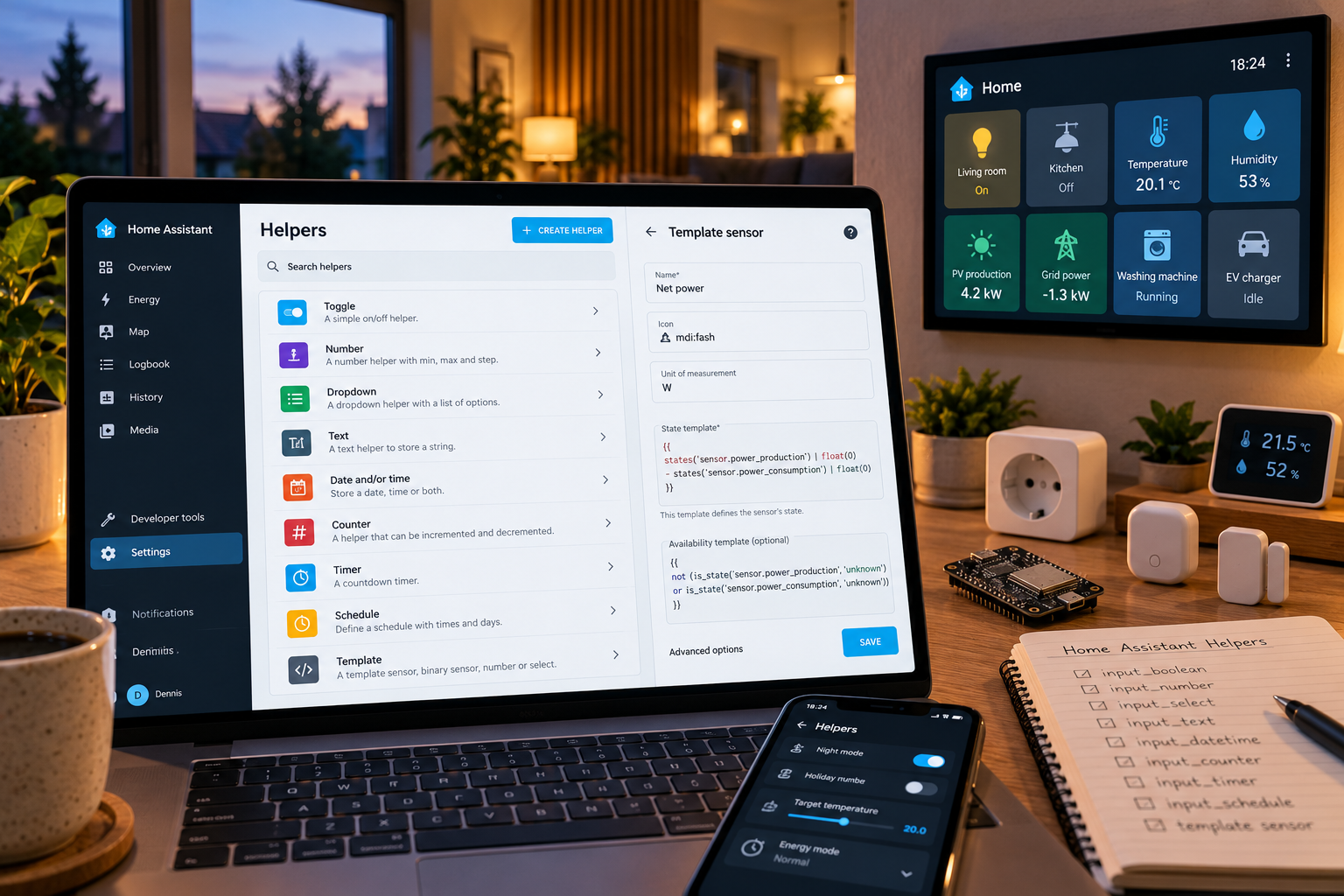
You can now create state-based Template Helpers directly in the UI through Settings > Devices & services > Helpers > Create helper > Template. YAML remains available for more complex possibilities.
20. Understanding templates without becoming a programmer
The two main forms beginners encounter are outputting a value and if/else logic.
Outputting a value:
{{ states('sensor.woonkamer_temperatuur') }}
if/else logic:
{% if is_state('binary_sensor.iemand_thuis', 'on') %}
  Home
{% else %}
  Away
{% endif %}
For numbers, almost always use a safe conversion such as | float(0). That prevents unknown or text values from immediately breaking your calculation.
Example – net power balance:
{{ states('sensor.power_production') | float(0)
   - states('sensor.power_consumption') | float(0) }}
21. Making Template Helpers robust
A template can be technically correct but still badly designed. Think about unknown, unavailable, division by zero and values with incorrect units.
Availability template – available only when both sources are valid:
{{ has_value('sensor.power_production')
   and has_value('sensor.power_consumption') }}
For a net power sensor, you can then set a clear unit, device class and state class when appropriate. That makes the sensor much more useful in dashboards, statistics and automations.
Do not use Template everywhere. If a normal Numeric state condition, Threshold Helper or Combine Helper does the same job, it is often easier to maintain. Template is powerful, but readability matters too.
Practical patterns
22. Practical pattern 1 – one central house mode
One of the most useful applications is an input_select.house_mode. It gives Home Assistant an explicit context that several automations can share.
For example:
Home: normal comfort automations.Away: lights off, heating lower, arm Alarmo.Night: quieter lighting and notifications, secure the exterior perimeter.Vacation: energy saving and presence simulation.Guest: some presence and energy rules temporarily less strict.
The advantage is that twenty automations no longer need to infer independently what “night” or “vacation” means. They all read the same Helper.
23. Practical pattern 2 – a smart bathroom with multiple Helpers
A robust bathroom control setup can combine multiple Helpers:
| Helper | Role |
|---|---|
input_boolean.badkamer_auto |
Allow/block automatic ventilation |
input_number.badkamer_rv_drempel |
Adjustable humidity threshold |
timer.badkamer_boost |
Visible and controllable run-on time |
binary_sensor.shower_active (Template/Threshold) |
Combined shower indication |
Example – multiple Helpers create configurable logic together:
alias: Badkamer automatische ventilatie
triggers:
  - trigger: state
    entity_id: sensor.badkamer_luchtvochtigheid
conditions:
  - condition: state
    entity_id: input_boolean.badkamer_auto
    state: "on"
  - condition: template
    value_template: >
      {{ states('sensor.badkamer_luchtvochtigheid') | float(0) >
         states('input_number.badkamer_rv_drempel') | float(65) }}
actions:
  - action: fan.turn_on
    target:
      entity_id: fan.badkamer
  - action: timer.start
    target:
      entity_id: timer.badkamer_boost
    data:
      duration: "00:20:00"
24. Practical pattern 3 – making a washing machine smarter
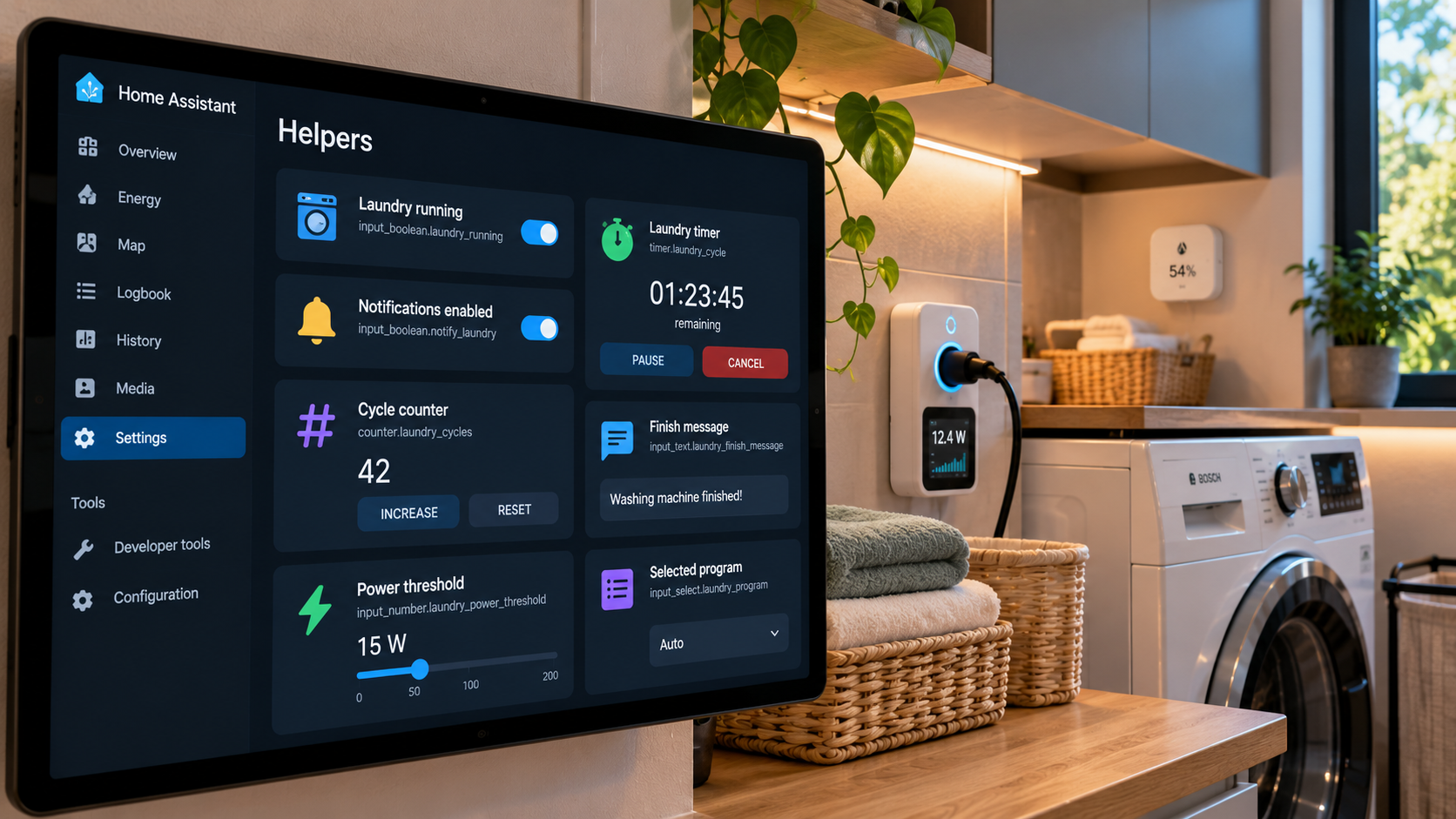
For a washing machine, Helpers can turn raw power measurements into a usable process. Consider:
input_boolean.laundry_running– remembers that a cycle has started.input_boolean.laundry_notifications– lets users turn notifications on or off.input_number.laundry_finish_threshold– adjustable power threshold.counter.laundry_cycles– counts completed cycles.input_text.laundry_finish_message– optional custom message.
Example – Helpers make detection logic adjustable and readable:
alias: Wasmachine klaar detecteren
triggers:
  - trigger: template
    value_template: >
      {{ is_state('input_boolean.laundry_running', 'on')
         and states('sensor.wasmachine_power') | float(0) <
             states('input_number.laundry_finish_threshold') | float(3) }}
    for: "00:03:00"
actions:
  - action: input_boolean.turn_off
    target:
      entity_id: input_boolean.laundry_running
  - action: counter.increment
    target:
      entity_id: counter.laundry_cycles
25. Helpers on dashboards and through Assist
Because Helpers are ordinary entities, you can place them directly on dashboards. This is where they become valuable as an adjustable “control layer” above your automations.
Good dashboard Helpers include:
- Toggle for Guest mode or Automatic heating.
- Number for target temperature or price threshold.
- Dropdown for House mode.
- Date/time for wake-up light or scheduling.
- Timer to follow an active boost visually.
- Template sensor to show a clear summary.
Many Helpers can also be exposed to Assist. You can then change a toggle or adjust a value by voice, for example. Keep names human and unambiguous.
Management, choices and troubleshooting
26. Naming, Areas and structure
Helpers multiply quickly. Poor naming therefore becomes costly to maintain within a few months. Use a consistent pattern:
- Put the purpose first: “Automatic bathroom ventilation” is better than “Helper 4”.
- Include a unit in the name only when useful: “PV price threshold” with unit €/kWh.
- Use Areas where logical, so Helpers belong to a room.
- Do not copy device names when the Helper actually represents an abstract house function.
- Document exceptions in the description or automation alias.
For example, input_boolean.guest_mode is clear. input_boolean.test2 and input_boolean.automation_override_new_final are not.
27. When should you not use a Helper?
A Helper is not an end in itself. Sometimes it makes a solution more complicated. Do not add one when:
- the state already comes reliably from an existing entity;
- you only use one fixed value in one automation and will never need to change it;
- a normal condition is already clear enough;
- you are trying to duplicate a physical state and the two could later go out of sync;
- you only need an intermediate variable within one script – use script/automation
variablesinstead.
A good Helper has a clear owner and meaning. If you can no longer explain why it exists, that is often a sign that the architecture could be simpler.
28. Common mistakes
- Creating an
input_booleanfor every automation without a clear reason. - Using an
input_selectwith overlapping or unclear modes. - Using a Timer as though
timer.finishedwere guaranteed to catch up after every offline period. - Creating Template calculations without handling
unknown/unavailable. - Mixing up W and kWh.
- Naming Helpers like physical devices, making dashboards unclear.
- Copying a sensor state into a Helper instead of using that sensor directly.
- Making a Number range so large that the dashboard becomes awkward.
- Exposing technical Helpers to the whole family when they never need manual control.
29. Troubleshooting: a Helper does not do what you expect
Work through problems systematically:
- Check the current state in Developer Tools > States.
- Check that the
entity_idin your automation is exact. - Inspect automation traces: did the trigger, condition or action fail?
- Test templates first in Developer Tools > Template.
- Check types: the text “20” is not always the same as the number 20; use
| floator| intwhere needed. - Check restart behaviour for Timer, Counter and
initial/restoresettings. - Check units before using Threshold, Integral or Utility Meter.
Debug tip. Do not immediately spread complex logic across five automations. Test one Helper manually on the dashboard first and see whether its state behaves exactly as you expect.
30. Which Helper should you choose?
| I want to… | Usually choose… |
|---|---|
| Remember an on/off choice | Toggle / input_boolean |
| Make a number adjustable | Number / input_number |
| Select one of fixed options | Dropdown / input_select |
| Store short text | Text / input_text |
| Set a date/time | Date and/or time / input_datetime |
| Add an action button to a dashboard | Button / input_button |
| Count something | Counter |
| Run a countdown | Timer |
| Set a weekly plan | Schedule |
| Bundle several entities | Group |
| Calculate average/min/max/sum | Combine state |
| Measure change over time | Derivative |
| Turn power into energy | Integral |
| Measure usage per period | Utility Meter |
| Get duration/count from history | History Stats |
Turn a threshold into on/off |
Threshold |
| Make a custom calculation or logic | Template |
31. Conclusion – Helpers make automations configurable
Helpers are among the most important concepts once you want to take Home Assistant beyond controlling individual devices. They give automations memory, adjustable values, human choices and calculated context.
The best approach is not “as many Helpers as possible” but exactly enough abstraction to keep your home understandable. Use Toggle for genuine on/off choices, Number for adjustable thresholds, Dropdown for exclusive modes, Timer for shared countdowns and Template only when simpler Helpers are not enough.
Practical final rule. A good Helper makes your automation easier to understand, control or reuse. If it only adds complexity, leave it out.
Sources and currency. Based on the official Home Assistant documentation on Helpers, Toggle/input_boolean, Number/input_number, Dropdown/input_select, Date and/or time/input_datetime, Timer, Counter, Template and templating, consulted in October 2026. Home Assistant develops quickly; check at publication whether any interface label has changed. Official documentation: home-assistant.io/docs/configuration/helpers/ and the relevant integration pages on home-assistant.io.