
You hardly notice a good backup. You notice a missing one immediately. Home Assistant often becomes the brain of your home: lights, sensors, dashboards, automations, energy data and settings. After months or years, rebuilding all of that takes time. Fortunately, Home Assistant can create backups automatically and remove old ones. With a few deliberate choices, there is little to do afterwards.

What could you lose without a backup?
A Home Assistant installation consists of many small decisions. Their combination takes time to recreate:
- Automations and scripts.
- Dashboards and helpers.
- Integrations and device settings.
- Users, zones and preferences.
- History and database information.
- Files and apps you added yourself.
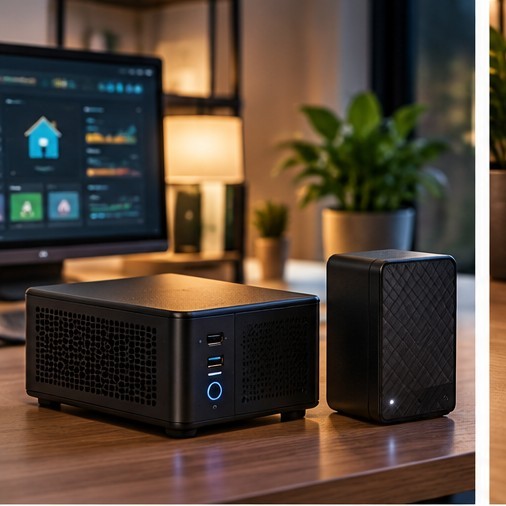
Without a backup, failed storage or another outage may force you to pair devices again, rebuild dashboards and recover all your logic. With a backup, you can restore a saved state and often get going much faster. The longer your installation has been running, the more valuable its configuration becomes.
Set up automatic backups
In Home Assistant, open Settings > System > Backups. There you can configure automatic backups. Choose the days, set a time or let Home Assistant pick one, decide how many older versions to retain, select what to include and choose one or more storage locations.
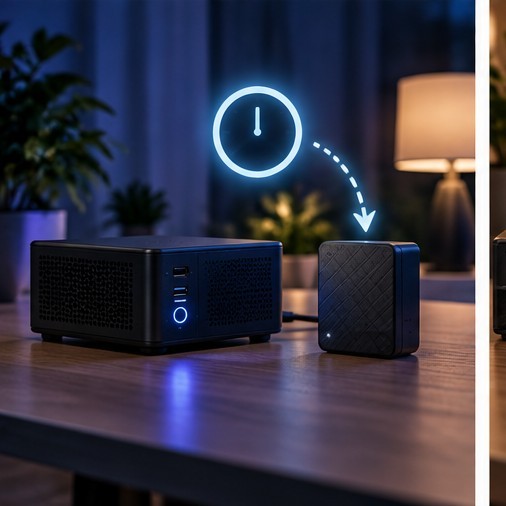
Daily backups are a sensible starting point for many homes. If you rarely change anything, a less frequent schedule may be enough. The important part is automation. A practical first setup is a daily backup with several older versions retained, so you can also return to a point before a mistake.
Keep a copy outside Home Assistant
A backup on the same SSD or SD card is useful for a quick restore, but it does not protect you from failed storage, theft or serious damage to the device. Keep at least one copy in a second location.
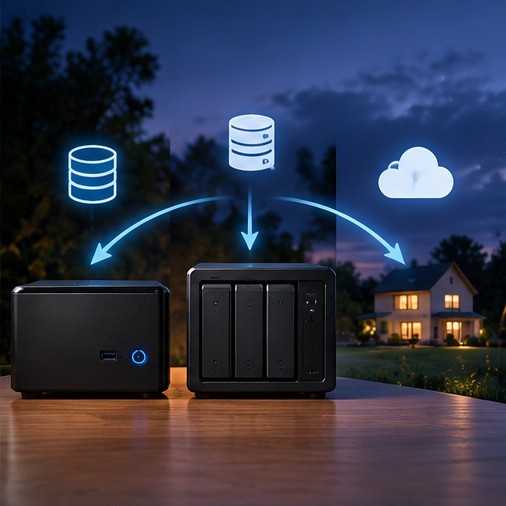
- On Home Assistant: quick and convenient for immediate recovery.
- On a second system or NAS: separate from the Home Assistant machine.
- Off-site or in the cloud: available even if something serious happens at home.
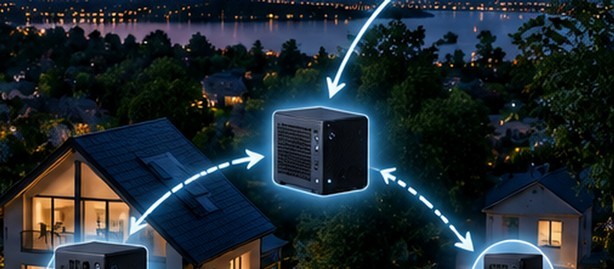
The classic 3-2-1 rule means three copies of important data, on two different storage locations, with one away from your home or primary system. You do not have to do it perfectly on day one. Even one extra copy outside Home Assistant is a major improvement.
Store the emergency kit safely
When you set up automatic backups, Home Assistant lets you download an emergency kit. It contains information you may need to restore an encrypted backup. Keep the kit outside Home Assistant, for example in a trusted password manager or secure offline storage, and make sure you can reach it when Home Assistant itself will not start.

A backup you cannot decrypt is nearly useless when you need it. Backups can contain settings, access keys, integrations and information about your home. Do not treat them as ordinary downloads: avoid casual sharing and unprotected storage.
Make a fresh backup before major changes
Home Assistant can be configured to make a backup automatically before an update. Make an extra backup yourself before substantial changes, such as adding an integration, changing the network, making extensive YAML edits, migrating to different hardware or replacing storage.

Retain multiple versions. Sometimes you discover an error days later, when it is already present in the newest backup. A copy from yesterday and an older restore point give you more options.
Restore on your current system
Open Settings > System > Backups, select the backup you want and choose what to restore. A full restore returns the selected state. A partial restore can be useful when only one part went wrong.

Keep these points in mind:
- Home Assistant overwrites the components you select for restoration.
- The web interface may be unavailable for a while during the restore.
- Home Assistant restarts when restoration is complete.
- Afterwards, use the username and password associated with the restored backup.
Do not panic if the interface disappears temporarily during a full restore.
Move to new hardware
A backup can serve as a moving box. During the initial Home Assistant setup, you can upload an existing backup and move your configuration to different hardware, even when the new device is not exactly the same model.

- Install Home Assistant on the new device.
- During onboarding, choose to restore from a backup.
- Upload the backup file or choose an available backup location.
- Enter the encryption key when prompted.
- Let the restore finish and then check your devices.
If you use a USB radio for Zigbee or Z-Wave, connect it to the new system too. Replacing the radio itself may require an extra migration step. A backup moves the software; physical adapters must also move or be replaced correctly.
Common mistakes
- Everything stays on one device. The Home Assistant machine and its only backup can fail together.
- The emergency kit stays on Home Assistant. A complete outage then prevents you from reaching it.
- Only one version is retained. A configuration mistake may already be in the latest backup.
- Backups become unnecessarily large. Media and shared files can use a lot of space; choose what to include.
- Nobody checks the result. Occasionally verify that the latest automatic backup actually completed.
A simple backup plan
- Enable automatic backups; daily is a straightforward starting point for many setups.
- Keep several versions so you have multiple restore points.
- Use at least one second location outside the Home Assistant machine.
- Store the emergency kit separately and make sure you can retrieve the encryption key.
- Check occasionally that the latest automatic backup succeeded.
The best strategy is not the most complicated one. It is the one that runs automatically and that you can actually use under stress.
Sources and further reading
The supplied guide points to the official Home Assistant documentation on Backups, the Backup emergency kit and the Backup integration. This beginner's article is based on the September 2026 version.