

Resolution, bandwidth, HDR, ARC/eARC, VRR, ALLM and cables: what really happens between your television and your equipment?
Technical practical guide | Mechscript.nl | October 2026 | Reading time: about 25 minutes
HDMI looks simple: plug a cable between a device and a television, and a picture appears. But behind that connection is an extensive digital system. The source and display negotiate resolution, refresh rate, colour format, copy protection and audio. A soundbar or AV receiver may be involved too. That explains why two cables can look exactly alike while one passes 4K at 120 Hz without trouble and the other causes black screens or dropouts.
This article begins with the basics but goes further than a standard comparison of HDMI versions. It explains which parts actually affect picture quality, what marketing names conceal and how to build the right connection for a modern television.
In one minute: For an ordinary 4K60 TV source, a certified Premium High Speed HDMI Cable is usually sufficient. For 4K120, VRR or a new gaming PC, choose a certified Ultra High Speed HDMI Cable. On devices, look beyond the ‘HDMI 2.1’ label to supported features and actual port bandwidth. [1][2]
Contents
- What is HDMI and how does the connection work?
- HDMI 1.4, 2.0 and 2.1 compared
- Bandwidth, TMDS and FRL
- Resolution, hertz, bit depth and chroma
- HDR, Dolby Vision and HDCP
- VRR, ALLM, QFT, QMS and DSC
- ARC, eARC, CEC and surround sound
- Which HDMI cable should you buy?
- Long cables, optical fibre and switches
- Practical connections: TV, soundbar, console and PC
- Troubleshooting: a targeted diagnosis
- Practical example: LG OLED65GX6LA
- Frequently asked questions and checklist
- Sources
1. What is HDMI and how does the connection work?
HDMI stands for High-Definition Multimedia Interface. It carries digital video and audio over one connection. Depending on implementation, the same connectors can also carry control information, return audio and various forms of communication between devices. HDMI is therefore more than a digital replacement for SCART.
The most common connector is the 19-pin HDMI Type A. You find it on televisions, monitors, consoles, graphics cards, media players and receivers. Smaller variants also exist: Type C (mini-HDMI) and Type D (micro-HDMI), for example on cameras. The connector shape does not, by itself, tell you the maximum supported picture mode.
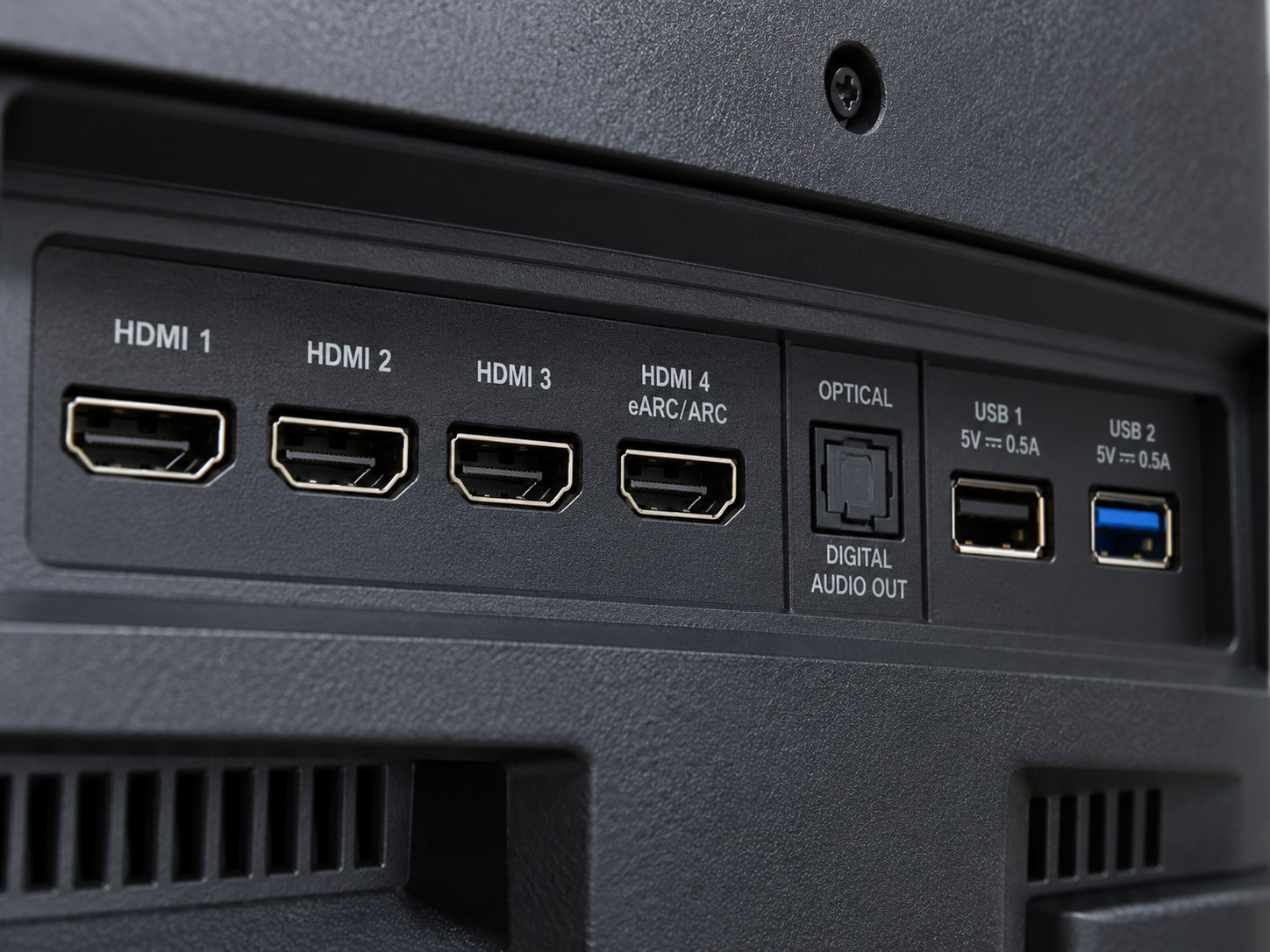
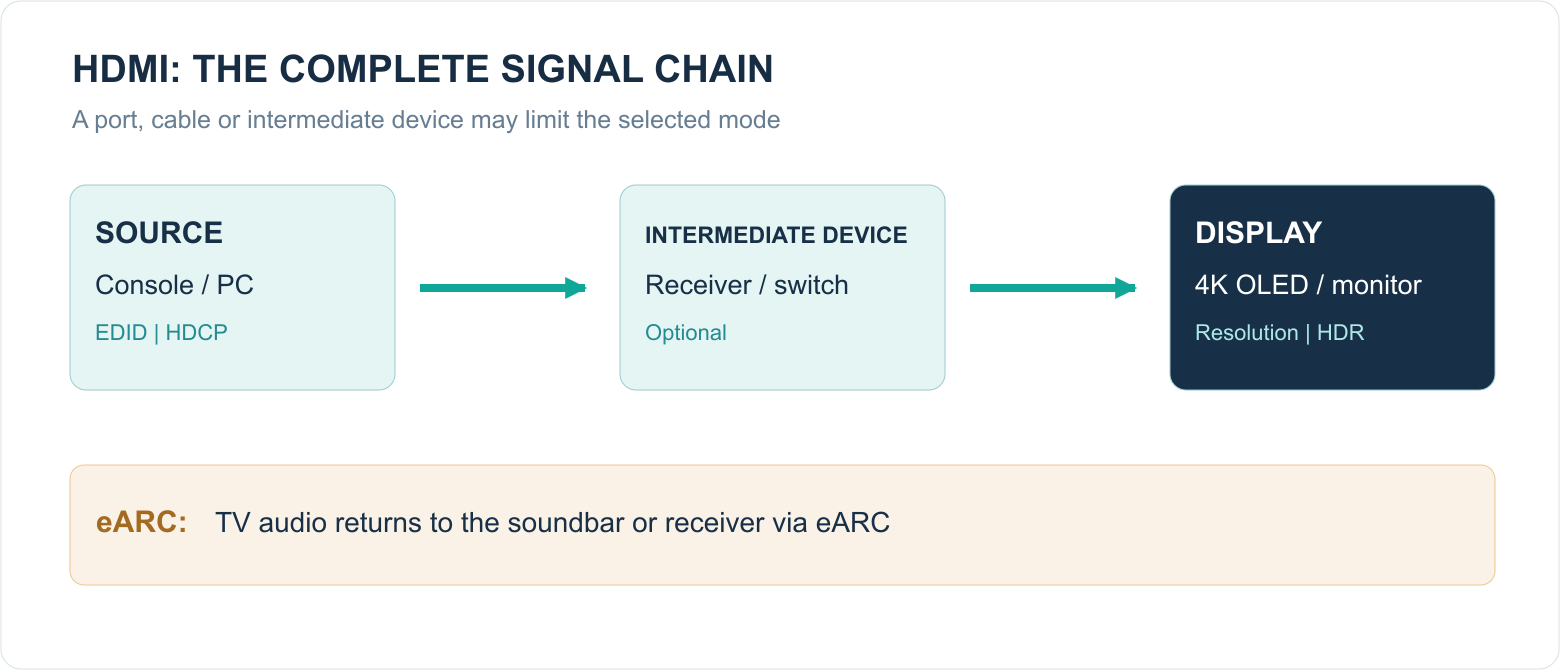
What happens when you connect a device?
- Hot Plug Detect: the source notices that a display or another HDMI device has been connected.
- EDID: the source reads which video and audio formats the receiving device reports that it supports. EDID stands for Extended Display Identification Data.
- Signal mode: devices agree on a compatible resolution, frequency, bit depth and transmission method.
- HDCP where needed: protected content triggers a separate verification step.
- Playback: video and audio are sent. A change, such as switching from 60 to 24 Hz, may require a fresh negotiation.
A brief black flash when a film begins need not indicate a fault. The player may, for example, switch from 4K60 to 4K24. Persistent dropout, flicker or repeated renegotiation does warrant investigation of the chain.
2. HDMI 1.4, 2.0 and 2.1 compared
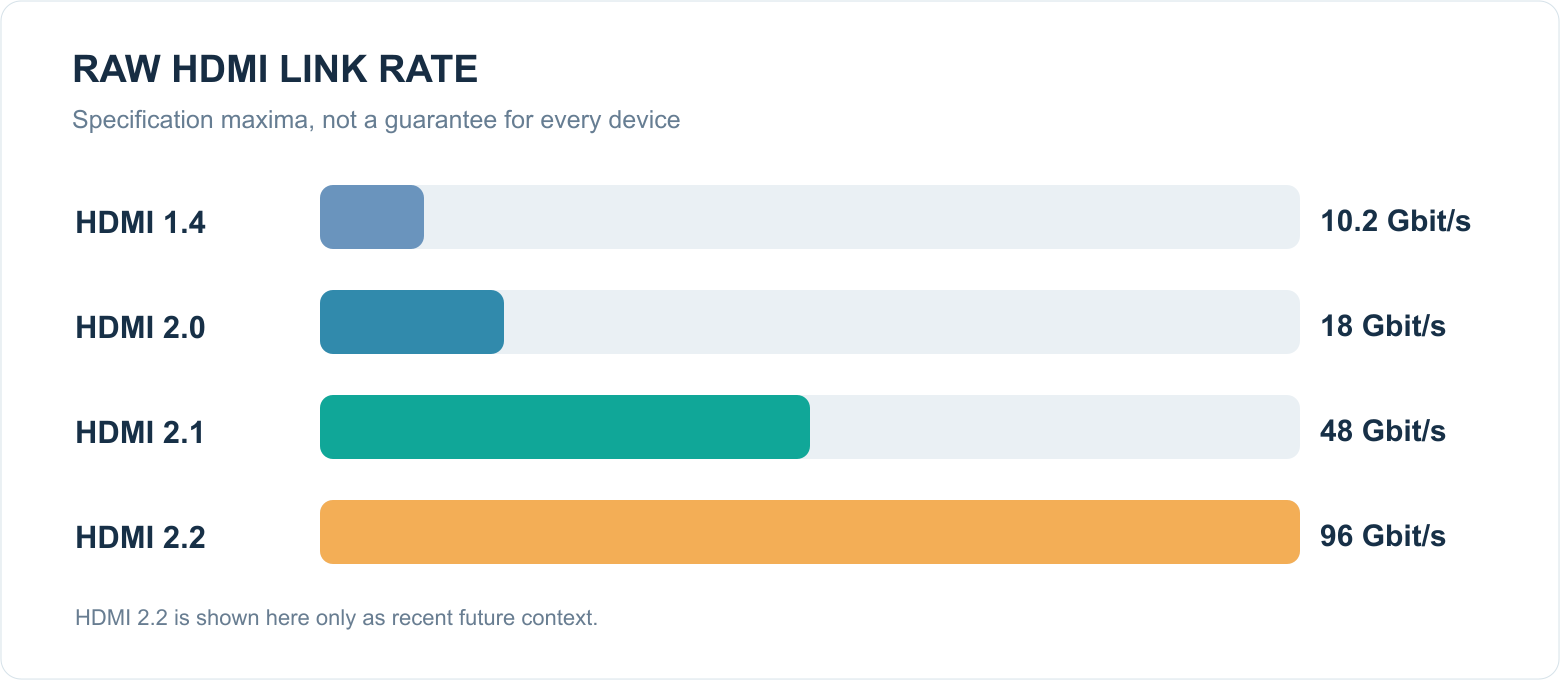
Version numbers help describe HDMI’s history but are insufficient as product specifications. The main differences between generations concern available transmission capacity and possible features. The stated maxima are specification limits, not automatic performance figures for every product. [1][2]
| Generation | Theoretical maximum raw link rate | Typical capabilities | Practical use |
|---|---|---|---|
| HDMI 1.4 / 1.4b | 10.2 Gbit/s | Up to 4K at 24/30 Hz; ARC, 3D, optional Ethernet Channel | Older TVs, Blu-ray and 1080p equipment |
| HDMI 2.0 / 2.0a / 2.0b | 18 Gbit/s | 4K60; more colour formats; HDR10 signalling from 2.0a and HLG-related extensions | 4K streamers, TV receivers, UHD Blu-ray |
| HDMI 2.1 / 2.1b | Up to 48 Gbit/s | FRL for modes including 4K120 and 8K60; optional VRR, ALLM, eARC, QMS and more | Consoles, gaming PCs, high-end AV |
HDMI 1.4 arrived in 2009 and was a major step at the time. It offered, among other things, 4K at low frame rates and introduced ARC. A 4K television with only HDMI 1.4 is therefore not necessarily suited to 4K60 from a computer.
HDMI 2.0 roughly doubled the maximum rate towards 18 Gbit/s and made 4K60 widely practical. Later extensions added HDR-related metadata and compatibility. A device from the HDMI 2.0 era may be perfectly good for a 4K60 media player but generally cannot achieve 4K120 with full colour information.
HDMI 2.1 introduced a much higher ceiling and new gaming and audio features. There is an important catch: the additional HDMI 2.1 features are optional. The HDMI organisation explicitly confirms that a manufacturer may even offer an HDMI 2.1 product with the older TMDS signalling method and 18 Gbit/s, provided the supported features are stated correctly. [2]
‘HDMI 2.1’ without further detail is therefore insufficient. Look for specific features such as 4K120, VRR, ALLM, eARC, FRL and bandwidth in Gbit/s.
But HDMI 2.2 also exists now
The HDMI 2.2 specification has existed since June 2025, with a maximum of 96 Gbit/s and a new Ultra96 HDMI Cable category. The recognisable Ultra96 designation was introduced for it. The technology targets very high resolutions and refresh rates. Its existence does not suddenly make HDMI 2.1 obsolete for normal 4K TV use: a 4K120 OLED does not need 96 Gbit/s. [3]
3. Bandwidth: TMDS, FRL and why the figures are not the whole story
Bandwidth determines how much digital information the connection can process per second. Higher resolution, refresh rate, bits per colour and full colour resolution together demand a larger data stream.
Up to and including the HDMI 2.0 generation, TMDS (Transition-Minimized Differential Signaling) predominates. HDMI 2.1 additionally introduces FRL (Fixed Rate Link), a more modern method of reaching the high data rates that enable, for example, 4K120 in full RGB and 10-bit colour. FRL and TMDS are transmission methods, not different cable plugs.
A common mistake is to interpret 18 or 48 Gbit/s directly as useful video throughput. Some capacity is used for encoding and control. You therefore cannot simply multiply pixels × hertz × bit depth and compare that result with the number on the box without accounting for blanking and protocol overhead, among other things.
Example: 3840 × 2160 at 120 Hz produces almost one billion image pixels per second. RGB with 10 bits per colour component alone yields about 29.9 Gbit/s of active pixel information, before transport overhead. 4K120 HDR thus demands far more than 1080p60.
The weakest link still determines the result. A console may support 4K120, but if you connect it through a receiver with only a 4K60 input, the whole connection falls back to what the receiver can pass.
4. Resolution, hertz, bit depth and chroma
Resolution: how many pixels are there?
Full HD consists of 1920 × 1080 pixels (about 2.1 million). 4K UHD is 3840 × 2160 pixels (about 8.3 million), four times as many as Full HD. 8K UHD contains 7680 × 4320 pixels (about 33.2 million). More pixels help primarily with a sufficiently large screen, short viewing distance and high-quality source content.
Hertz: how often does the screen refresh?
Refresh rate is expressed in hertz: 60 Hz means up to sixty refreshes per second; 120 Hz up to one hundred and twenty. The source material need not have the same frame rate. A 24 fps film can, for example, be displayed neatly at a 5:5 cadence on a 120 Hz screen if the devices handle it correctly.
For competitive games, 120 Hz is often noticeably smoother and more responsive than 60 Hz. For ordinary films, the additional HDMI bandwidth alone does not create new film detail or extra frames.
8-bit, 10-bit and 12-bit colour
Bit depth describes the number of intensity levels per colour component. At 8-bit there are 256; at 10-bit, 1024; and at 12-bit, 4096. Consumer HDR content generally uses 10-bit processing or signalling. A 12-bit HDMI output does not, however, mean the connected panel itself is 12-bit.
RGB versus YCbCr: what are 4:4:4, 4:2:2 and 4:2:0?
RGB transports three full colour components. With YCbCr, brightness information is separated from colour-difference information. It then becomes possible to transmit less colour detail: chroma subsampling. [4]
| Signal form | Colour detail | Practical assessment |
|---|---|---|
| RGB / YCbCr 4:4:4 | Full chroma resolution | Recommended for PC desktops and small coloured text |
| YCbCr 4:2:2 | Reduced horizontal chroma detail | Often acceptable for video and AV uses |
| YCbCr 4:2:0 | Reduced horizontal and vertical chroma detail | Common in streaming and disc video; usually barely visible in films |
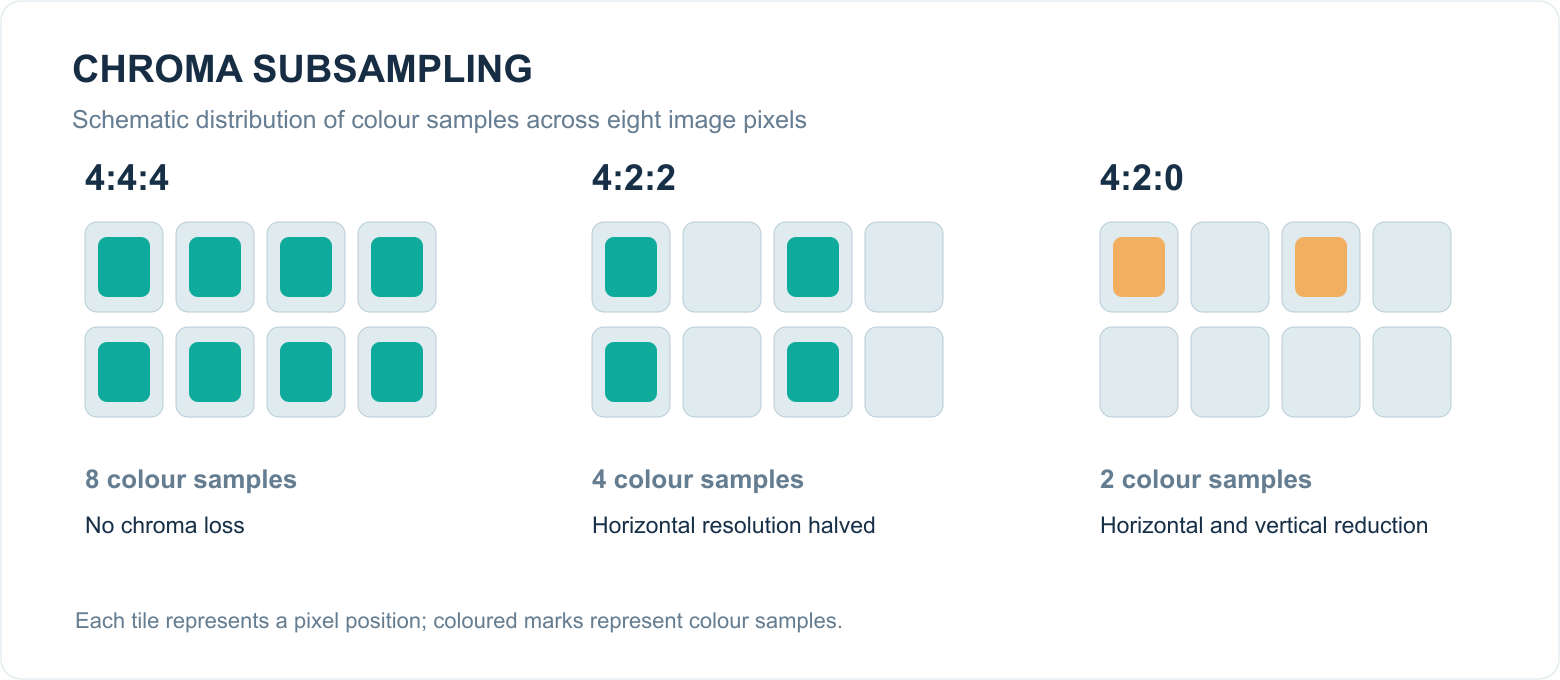
In practice: if you connect a PC to a TV and red or blue text looks blurry, check whether the graphics card outputs RGB or YCbCr 4:4:4 and whether the television uses PC mode for that HDMI input. For a streaming box, it is generally unnecessary to obsess over 4:4:4: many films and series already arrive in 4:2:0.

5. HDR, Dolby Vision and HDCP: three different subjects
HDR (High Dynamic Range) describes a larger brightness range and often a wider range of colours. It is not the same as resolution. A good HDR image on an OLED can look much more impressive than SDR even if both are 4K. The source, TV and HDMI signal mode must, however, be compatible.
HDR10 uses static metadata, among other things. Dolby Vision and HDR10+ can use dynamic metadata for each scene or frame. HDMI carries the signals, but HDMI 2.1 does not oblige a TV to support Dolby Vision or HDR10+. Conversely, many 4K60 HDR applications do not require HDMI 2.1 FRL.
HDCP stands for High-bandwidth Digital Content Protection. It is a copy-protection protocol, not a resolution or colour standard. Some streaming services or players require a suitable HDCP version throughout the chain for protected 4K content. An incompatible splitter, capture card or AV receiver can then cause a black picture or lower playback quality.
These are three different problems: a source can support HDR, an HDMI port can be fast enough, and the connection can still report an HDCP error. Do not try to solve that by randomly changing every picture setting on the television.
6. Gaming features: VRR, ALLM, QFT, QMS and DSC
VRR (Variable Refresh Rate) lets the display’s refresh frequency vary with the console’s or graphics card’s frame output. This reduces visible tearing and some kinds of stutter. Both source and display must support VRR; HDMI 2.1 on the box is insufficient.
ALLM (Auto Low Latency Mode) lets the source request a low-latency mode. The television can then switch automatically to game mode. ALLM does not make your graphics card faster: it mainly limits processing and delay at the display end.
QFT (Quick Frame Transport) is intended to reduce the time needed to transmit a frame. Its availability and actual effect depend on implementation at both ends.
QMS (Quick Media Switching) can, under suitable conditions, avoid a brief black transition when, for instance, video switches from 24 to 60 fps at the same resolution. It does not mean that every SDR-to-HDR transition or resolution change is interruption-free.
DSC (Display Stream Compression) is a visually lossless form of video compression supported by HDMI for certain demanding display modes. It is not the same as the compression Netflix uses to deliver a film; these occur at different stages in the system.
| Feature | What does it help with? | What should you check? |
|---|---|---|
| 4K120 | Very smooth games at high resolution | Console/PC, cable, port and TV must all cooperate |
| VRR | Less tearing and variable frame rate | Suitable VRR range and mutual compatibility |
| ALLM | Automatic low input lag | Both devices must implement ALLM |
| QFT | Potentially lower transport latency | Rarely a deciding purchase criterion |
| QMS | Less interruption when frame rate changes | Not the same as flawless switching of every signal format |
| DSC | Extra demanding display modes within available connection capacity | Works only when source and receiver support it |
7. ARC, eARC, CEC and Dolby Atmos
An HDMI connection normally carries video and sound from the source to the television. A return channel exists to send TV sound back to a soundbar.
ARC (Audio Return Channel) was introduced with HDMI 1.4. A suitable television can send sound from the TV back to a soundbar or receiver over the relevant HDMI connection. It works well for stereo and certain compressed surround formats, including Dolby Digital. Some devices can also transport Dolby Atmos over Dolby Digital Plus through ARC.
eARC (enhanced ARC) offers considerably more capacity and a more robust negotiation method for high-quality audio, including multichannel PCM and lossless formats such as Dolby TrueHD, insofar as the complete system and actual audio formats support them. eARC is not the same as HDMI 2.1 video bandwidth: some televisions support eARC without 4K120. [1]
| Audio format / function | ARC | eARC |
|---|---|---|
| Stereo PCM | Yes | Yes |
| Dolby Digital 5.1 | Yes | Yes |
| Dolby Digital Plus / Atmos over DD+ | Often, if supported | Yes, if supported |
| Uncompressed multichannel PCM | Usually not | Yes, if supported |
| Dolby TrueHD / Atmos over TrueHD | No | Yes, if supported |
| DTS-HD MA / DTS:X | No | Only if both TV and audio chain support DTS |
CEC (Consumer Electronics Control) is something different again. It allows devices to exchange control commands over HDMI: turning on a soundbar with the TV or controlling volume with one remote, for example. Manufacturers use names such as LG Simplink, Samsung Anynet+ and Sony BRAVIA Sync. CEC can be convenient but sometimes causes unexpected source switching or power behaviour.
Soundbar setups
Setup A — simple and usually optimal with modern TVs:
Console / streamer → television HDMI input → HDMI eARC → soundbar
Here the picture goes directly to the television; audio returns through eARC. This prevents an older soundbar from inadvertently blocking 4K120 or VRR. The TV must still be able to pass the intended audio format.
Setup B — through an AV receiver:
Console / streamer → AV receiver → television HDMI input
That makes sense when the receiver demonstrably supports all desired video features, or when the TV cannot pass the audio format correctly. Check HDMI passthrough and HDCP support for each input.
Note: a ‘Dolby Atmos’ label on a TV does not automatically mean that every Atmos source is passed through every connection in the same audio format. The origin of Atmos — Dolby Digital Plus, Dolby TrueHD or Dolby MAT — matters.
8. Which HDMI cable should you buy?
Official cable names refer to a tested performance class, not an ‘HDMI 2.0 cable’ or ‘HDMI 2.1 cable’. The latter are marketing descriptions and can mislead. HDMI Licensing stresses that certified cables are identifiable by the official name and verifiable certification labels. [5]
| Official category | Designed / tested for | Typical choice |
|---|---|---|
| Standard HDMI Cable | Older HD display modes | Now only for existing, simple setups |
| High Speed HDMI Cable | Up to 10.2 Gbit/s as a cable category | Full HD, some 4K modes |
| Premium High Speed HDMI Cable | Certified for 18 Gbit/s | 4K60, many HDR streamers and UHD Blu-ray |
| Ultra High Speed HDMI Cable | Certified for up to 48 Gbit/s | 4K120, VRR, modern consoles and gaming PCs |
| Ultra96 HDMI Cable | Certified for up to 96 Gbit/s | Future-oriented HDMI 2.2 uses; not needed for ordinary 4K120 |
What should you look for when buying?
Prefer a certified Ultra High Speed HDMI Cable if you intend to route it behind a TV for a long time or use modern gaming equipment. Look for the official certification label and QR code. The cable need not be expensive or ‘gold-plated’. [5]
A cable does not create beautiful colours. A digital cable that carries the signal correctly and reliably does not change the intended colour rendition. An inadequate cable can instead cause dropout, picture flashes, white specks or fallback to a lower video mode. Price and marketing claims such as ‘8K cinematic gold’ are not useful measurement standards.
What about length?
A long cable is technically more challenging than a short one, especially at 40–48 Gbit/s. For common distances of 1 to 3 metres, a certified passive cable is usually a sensible choice. For longer runs, an active or optical HDMI system may be wiser; suitability depends on the exact length, cable type and devices used. There is no universal maximum HDMI cable length that applies to every cable category and device.
Active optical HDMI cables are often directional. The ‘Source’ end belongs at the console/PC and ‘Display’ at the television. Check separately whether the cable actually supports eARC and CEC; that is not a given with every optical design.
9. HDMI switches, splitters, optical fibre and USB-C adapters
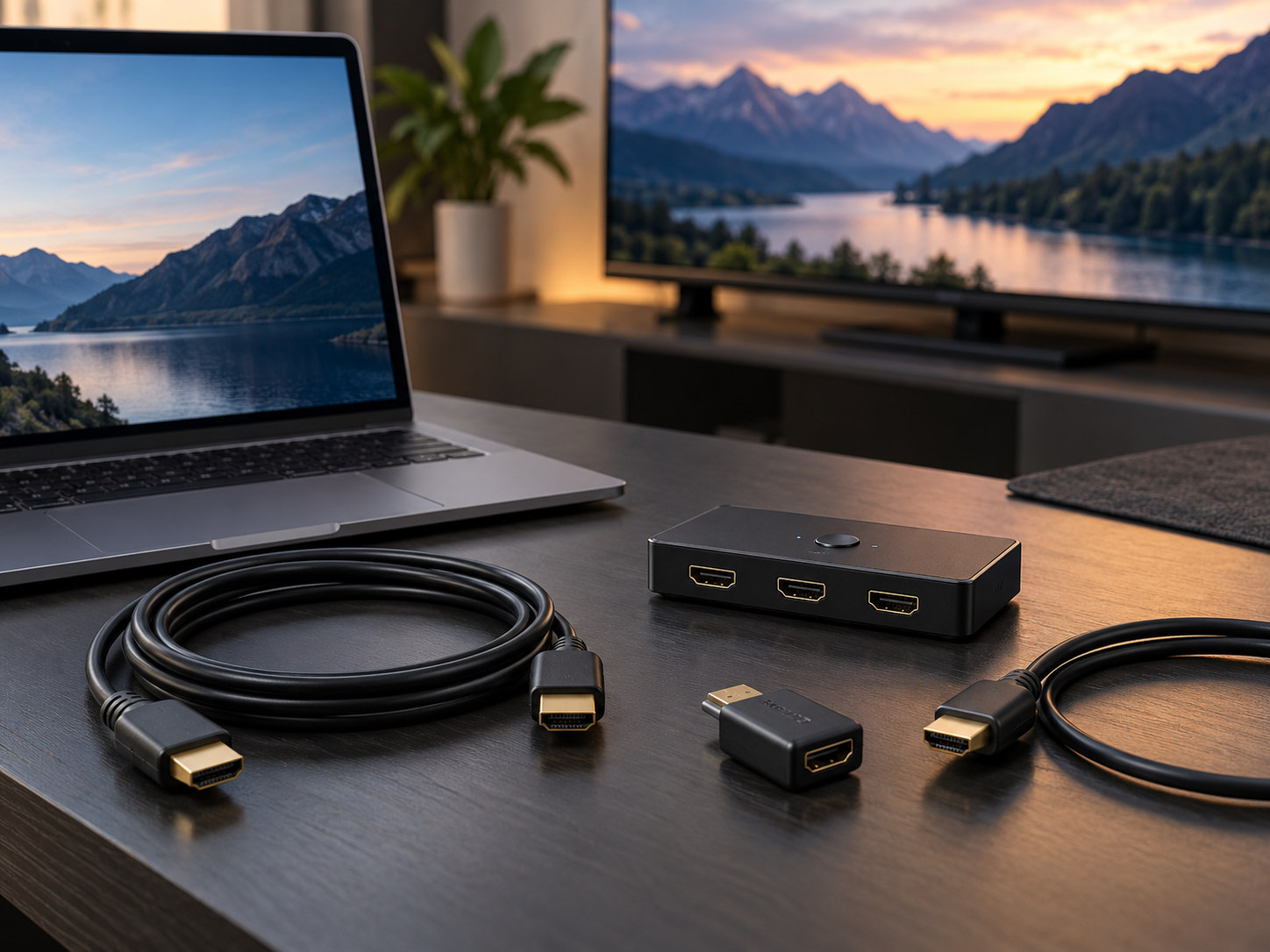
A switch selects one of several sources for one display. A splitter distributes one source to several displays. An AV receiver can partly combine those functions with audio processing. The distinction matters when connecting multiple consoles, a PC and a TV receiver.
An intermediate device must handle not only the advertised resolution but also the desired 60/120 Hz, FRL rate, colour formats, HDR metadata, HDCP, VRR and possibly eARC. An ‘8K switch’ without clear frame-rate and bandwidth specifications does not guarantee reliable 4K120 VRR.
USB-C to HDMI can work in several ways, such as DisplayPort Alt Mode with an adapter or USB4/Thunderbolt hardware. HDMI output depends on the device, adapter chip and implementation. The USB-C plug shape therefore guarantees neither 4K120, VRR nor HDR.
A 4K60 dock can restrict the maximum display mode even if the connected laptop and monitor separately support 4K120. Always check the entire chain’s specifications.
10. Practical examples: connect everything logically
Situation 1: television with streaming box or TV receiver
For Netflix, Disney+, Apple TV or a cable receiver, 4K60 is usually more than sufficient because most films and series are delivered at 24, 25, 30, 50 or 60 fps. A Premium High Speed cable may suffice. Check that the right HDR mode is recognised and preferably use frame-rate matching if your media player supports it.
Situation 2: PlayStation 5 or Xbox with an OLED TV
Connect the console directly to an HDMI input supporting 4K120 and VRR. Prefer a certified Ultra High Speed cable. Enable the enhanced HDMI signal mode, turn on game mode or ALLM and check 120 Hz/VRR on the console. Then run the console’s HDR calibration according to its instructions.
Situation 3: connecting a PC to a television
Use the panel’s native resolution, for example 3840 × 2160. Set an appropriate refresh rate, enable PC input mode where available and output RGB or 4:4:4 for sharp desktop work. Choose a consistent RGB range: ‘Full’ at both source and screen where explicitly available. Limited at one end and Full at the other can produce grey blacks or hide dark detail.
Situation 4: television with soundbar, but no sound
Use the television’s HDMI port specifically marked eARC/ARC. Connect it to the soundbar’s eARC/ARC port, not simply an HDMI input intended for source devices. Set TV audio output to HDMI ARC/eARC, enable eARC if available and choose an appropriate digital audio format: Pass Through for supported bitstreams or PCM as a reliable diagnostic test.
11. Troubleshooting: symptoms and causes
Many HDMI faults become reproducible when you simplify the signal chain one step at a time. Do not change the cable, port, receiver, output resolution and audio format simultaneously; afterwards you will not know what solved the problem.
| Symptom | Likely causes | First targeted test |
|---|---|---|
| Black screen at 4K120 | Port only handles 4K60, cable, intermediate device or signal mode | Connect source directly to TV, test 4K60, then 4K120 |
| Picture briefly drops out | Resynchronisation on a mode change or unstable signal | Does it happen only when HDR starts/stops or frame rate changes? |
| White specks or occasional dropout | Signal integrity, long cable, connector | Use a short certified cable directly |
| 4K content will not start | HDCP compatibility or handshake | Bypass receiver/splitter and check HDCP chain |
| HDR looks washed out | Wrong HDR mode or RGB range | Check HDR detection and range at both ends |
| Blurry PC text | 4:2:0/4:2:2 or incorrect PC mode | Enable 4:4:4/RGB and PC input |
| No Atmos or surround | ARC/eARC, passthrough, codec compatibility | Check audio format and eARC status on all devices |
| Soundbar switches unexpectedly | CEC commands or duplicate control | Temporarily disable CEC to isolate the cause |
| VRR option absent | One device/port lacks VRR or the mode is off | Check the specific port and VRR support in the manual |
Steps for persistent problems:
- Record the exact source, port, resolution, hertz, bit depth and enabled features.
- Connect the source directly to the television, without switch, splitter or receiver.
- Test a short, suitable and preferably certified cable.
- Begin with a simple mode such as 1080p60 or 4K60 SDR.
- Add 4K, HDR, 120 Hz and VRR step by step.
- Then check audio over ARC/eARC and enable CEC only if useful.
- Check firmware updates and physical connectors if the problem remains.
This is more efficient than ordering an expensive ‘better HDMI cable’ at random.
12. Practical example: LG OLED65GX6LA (2020)
The LG OLED65GX6LA, from LG’s 2020 Gallery series, illustrates why specifications matter more than version numbers. LG lists four HDMI 2.1 inputs and confirms that HDMI 2 is the eARC/ARC connector. RTINGS measured the GX-series ports at a maximum of 40 Gbit/s, rather than the specification’s 48 Gbit/s maximum. That still allows 4K120 with 10-bit and 4:4:4. [6][7]
For the 10-bit OLED panel, the absence of a 48 Gbit/s mode is generally no problem in daily use. A 12-bit HDMI output would not turn the panel into a 12-bit display. Correct source settings, HDR calibration and HDMI port mode matter more.
Specific connection advice for this LG GX:
- PS5/Xbox: connect to an available HDMI input, enable HDMI Ultra HD Deep Color where applicable and turn on 4K120/VRR on the console if using those features.
- Soundbar or AV receiver: use HDMI 2 (eARC) for return audio. A console can use another suitable TV HDMI input.
- PC: use a PC input label or PC mode and check RGB/4:4:4, 4K120 and any VRR settings.
- DTS: note that LG removed DTS support from its 2020 OLED generation. Even with eARC, you cannot assume a DTS source will pass correctly through the television. [7]
Those details matter far more than blindly seeking a ‘48G cable’ merely because the device says HDMI 2.1 on paper.
13. Frequently asked questions and quick buying checklist
Does an expensive HDMI cable make a sharper or more colourful picture?
No. Receiving the same digital picture mode correctly yields the same pixel image. A better-built certified cable may, however, work more reliably at high rates, over longer runs and under greater electromagnetic interference.
Can an HDMI 2.1 cable be used on an older HDMI 1.4 television?
Yes. The connector is backward compatible. That does not add 4K120 or VRR functionality to the television.
Does a 4K film at 24 fps need an Ultra High Speed cable?
Usually not. Premium High Speed often suffices for ordinary 4K24 and 4K60 HDR sources. Ultra High Speed is useful if you also want to allow for gaming, future equipment or a hard-to-replace cable run.
Does HDMI 2.1 automatically provide Dolby Vision, VRR and eARC?
No. Manufacturers must state which features each device supports. This is one of the most important rules when comparing HDMI equipment.
Does HDMI cable type affect Dolby Atmos?
Not when a suitable cable transports the required signal correctly. The distinction between Atmos over Dolby Digital Plus and Atmos over Dolby TrueHD lies primarily in the audio formats involved and the ARC/eARC chain, not a ‘special Atmos cable’.
What should I check before buying?
- Decide whether you need 4K60 or 4K120.
- Check whether you will actually use VRR/ALLM and whether both devices support them.
- Find the HDMI port carrying eARC/ARC.
- Choose a cable with the appropriate official certification label.
- Check direction and audio capability on active or optical cables.
- Evaluate the whole signal chain when using switches or receivers.
- Configure a suitable RGB/YCbCr, HDR and bit-depth mode at the source.
- Do not buy accessories based only on ‘HDMI 2.1’ or ‘8K’ on the packaging.
Conclusion
HDMI is not complicated because the plug has many different shapes; it is complicated because one connection handles several technical agreements at once. The cable must handle the required rate, the source must send the correct picture format, the port must support it and any intermediate equipment must not limit the chain.
You do not need to buy the most expensive equipment for ordinary 4K streaming. For 4K120 gaming and difficult installations, a suitable, officially certified Ultra High Speed HDMI cable is sensible. But the greatest benefit comes from understanding and checking the entire signal chain.
14. Sources and further reading
The content is based on specifications and technical explanations from HDMI Licensing Administrator and on product-specific measurements. References are provided for further verification; this article was compiled independently.
- HDMI Licensing Administrator — HDMI 2.1b (feature overview): https://www.hdmi.org/spec/hdmi2_1/hdmi2_1-spec.pdf
- HDMI Licensing Administrator — What does the HDMI 2.1 label mean?: https://www.hdmi.org/blog/detail/139
- HDMI Licensing Administrator — HDMI 2.2 and Ultra96: https://www.hdmi.org/spec/hdmi2
- RTINGS — Chroma subsampling explained: https://www.rtings.com/tv/learn/chroma-subsampling
- HDMI Licensing Administrator — Official cable categories and certification: https://www.hdmi.org/resource/cables
- LG — OLED65GX6LA product specifications: https://www.lg.com/uk/tvs-soundbars/oled/oled65gx6la/
- RTINGS — LG GX OLED review, HDMI bandwidth and eARC: https://www.rtings.com/tv/reviews/lg/gx-oled
Editorial note on images: the atmospheric photos in this article are photorealistic generated illustrations. They do not guarantee correct model-specific port labels or particular product configurations. The technical diagrams were created specifically for the explanation.